
CarPlay in iOS 16 enhances your display with iPhone feature
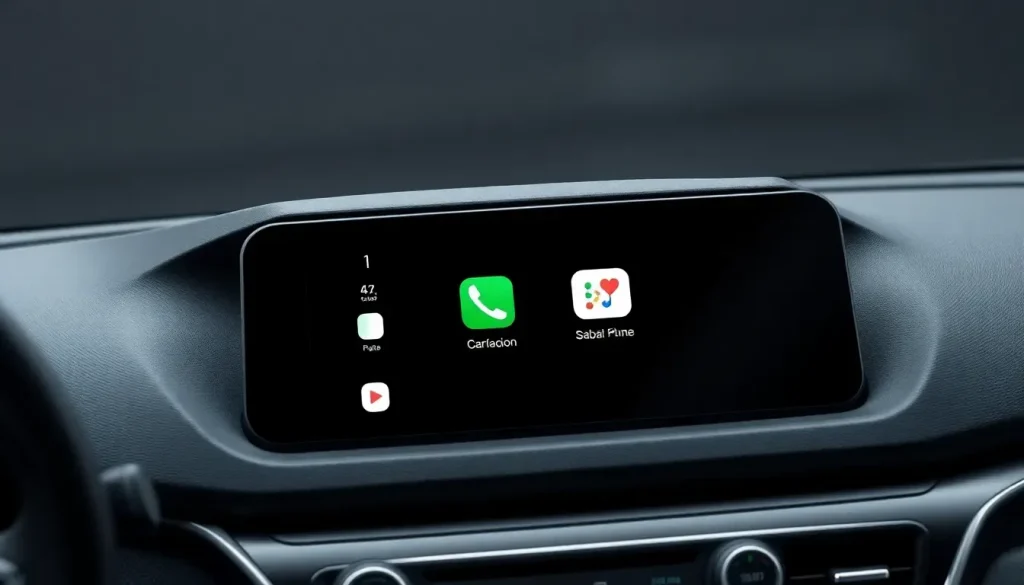
With the arrival of iOS 26, Apple is rolling out one of the most significant updates for CarPlay users in recent years. Among the most exciting features is the introduction of widgets, which enhance the user experience by providing glanceable information tailored to individual needs. This long-awaited addition marks a pivotal moment in how drivers and passengers interact with their vehicles.
Widgets have become a staple across Apple's ecosystem, making their way into the iPhone, iPad, Mac, and even the Apple Watch. Their integration into CarPlay finally aligns this platform with the familiar functionality users have come to expect from their devices. As we dive into the details of this update, it's essential to understand what these changes mean for the everyday driving experience.
Understanding the New Widgets in CarPlay
The introduction of widgets to CarPlay is a game changer, providing users with immediate access to vital information without the need to navigate through multiple screens. This feature was a long time coming; Apple initially teased the concept in 2022 during the announcement of what would later evolve into CarPlay Ultra.
In iOS 26, drivers can now personalize their CarPlay interface by adding widgets that mirror the functionality found on their iPhones. Here’s how these widgets enhance your driving experience:
- Quick Access: Widgets display essential information at a glance, allowing for quick interactions that minimize distractions while driving.
- Customizability: Users can choose which widgets to display and can stack them for an organized layout.
- Broader App Integration: Unlike previous iterations, iOS 26 allows the inclusion of widgets from any app available on the iPhone, not just those specifically designed for CarPlay.
How to Set Up and Customize CarPlay Widgets
Setting up widgets in CarPlay is straightforward. Users can easily configure which widgets appear in their car from the iPhone’s Settings app. Follow these steps to get started:
- Open the Settings app on your iPhone.
- Navigate to General and select CarPlay.
- Choose your vehicle from the list of available connections.
- Review the list of compatible apps and select which widgets to enable.
Once set up, users can stack up to five widgets, with the option to enable the ‘Smart Rotate’ feature, which automatically cycles through the widgets based on usage patterns. This level of customization ensures that the most relevant information is always at the forefront.
Exploring Widget Options and Customization
One of the key advantages of the new widget feature is the ability to customize certain parameters. For example, the Calendar widget allows users to:
- Mirror the selections from the iPhone’s Calendar app.
- Select specific calendars to display relevant events.
- Show or hide all-day events based on user preference.
These options enhance the user experience, making it easier to manage schedules and stay on top of appointments while on the road.
Maintaining Safety with Glanceable Information
Apple has a strong focus on safety, and the integration of widgets into CarPlay aligns perfectly with this principle. By providing glanceable information, users can quickly access critical data without diverting their attention from the road. This focus on minimizing distractions is crucial in promoting safer driving conditions.
The widgets' design emphasizes simplicity and usability, ensuring that drivers can access what they need promptly and efficiently. This critical aspect makes the arrival of widgets not just a functional enhancement but also a vital safety feature.
Additional Features in CarPlay iOS 26
In addition to widgets, iOS 26 brings a host of other features that enrich the CarPlay experience. Some highlights include:
- Enhanced Interface: A more intuitive layout that aligns with the latest design trends in Apple's other software.
- Support for Multiple Screens: CarPlay can now adapt to various screen sizes, offering a better experience across different vehicles.
- Voice Control Improvements: Siri's functionality has been upgraded, making it easier to interact with apps and control various features hands-free.
Best Accessories for Optimizing Your CarPlay Experience
To make the most of your CarPlay setup, consider investing in some accessories that can enhance usability and convenience:
- MagSafe Car Mount for iPhone - Ensures your phone is securely positioned for easy access.
- 10-foot iPhone cable USB-C to USB-A - Provides enough length for comfortable connectivity.
- FLYLEAD car charger with 2 USB-C and 2 USB-A ports - Keeps multiple devices powered during long trips.
- Apple AirTag for tracking your car - Helps locate your vehicle easily in crowded places.
- AirTag 4-pack for only $79 - A cost-effective solution for tracking multiple items.
Stay Updated with CarPlay
As technology evolves, keeping your CarPlay updated ensures you benefit from the latest features and improvements. Regular updates not only enhance functionality but also improve security and performance. Be sure to check for updates frequently to get the most out of your CarPlay experience.
For a more detailed look at the new features in iOS 26, you might find this video walkthrough helpful:
The integration of widgets into CarPlay is a significant step forward, making it a more user-friendly and safer option for drivers. With these enhancements, Apple continues to redefine the in-car experience, aligning it closely with the capabilities of its other devices.



Leave a Reply