
How to blur your house on Google Maps Street View
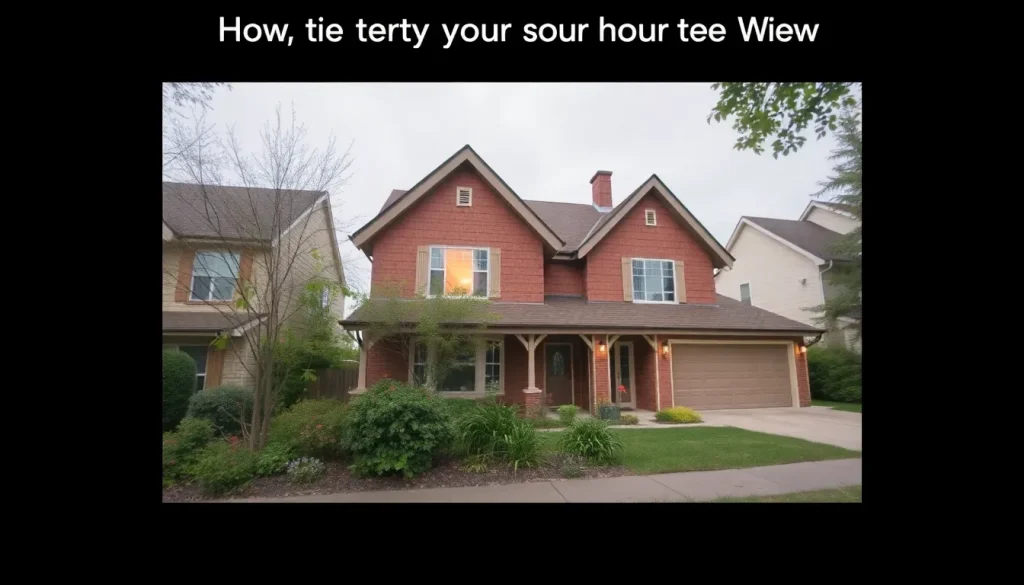
In an age where privacy is becoming increasingly important, many individuals are unaware that they can take steps to protect their personal space online. One of the tools that can help you maintain your privacy is Google Maps, specifically its Street View feature. Have you ever explored your home on Google Maps and wished that certain details were less visible? Fortunately, Google offers a solution that allows you to blur your home in Street View, ensuring that your property remains private. Below, we will explore how this process works and what you need to know to get started.
Understanding Google Street View and Its Privacy Implications
Google Street View is an impressive tool that enables users to explore streets around the world through panoramic images. However, while this feature is beneficial for navigation and exploration, it can also raise concerns about privacy. Many users may not realize how much information is visible to the public.
Some of the potential privacy risks associated with Google Street View include:
- Visibility of personal vehicles parked outside your home.
- Clear images of your house, including any identifiable features.
- Exposure of your backyard or other private areas.
- Potential identification of family members or pets.
These concerns have led individuals to seek ways to protect their privacy while still using the advantages offered by Google Maps. Fortunately, Google has established a process for blurring residential properties to help maintain confidentiality.
How to Blur Your Home on Google Street View
Blurring your home on Google Street View is a straightforward process, although it may take some time for Google to verify your request. Here is a step-by-step guide to help you navigate the process:
- Open Google Maps using any web browser and search for your home address.
- Select the Street View option to view the actual image of your property.
- In the bottom right corner, click on 'Report a problem.'
- Adjust the box that appears to cover the area you want to blur, including any personal details or sensitive areas of your home.
- From the options provided, select 'My home' as the reason for your request.
- Submit necessary information to prove your ownership of the property, such as a utility bill or property deed.
Once you have submitted your request, Google will review your case. They will verify whether the property belongs to you before proceeding with the blurring process.
The Review Process and What to Expect
It’s important to note that Google does not provide a specific timeframe for approval or denial of blur requests. The review process is manual, meaning it may take some time for your request to be processed. Here are a few tips to ensure a smoother experience:
- Gather comprehensive documentation that proves ownership of the property.
- Be patient; the review process can vary in duration.
- Ensure that the area covered in your request is accurate to avoid delays.
After Google has approved your request, your home will be blurred in Street View, meaning that specific details will be obscured from view. However, it’s essential to understand that this action is irreversible. Once your home is blurred, you cannot revert it back to its original, clear state in Street View.
Additional Considerations for Privacy on Google Maps
While blurring your home is a significant step toward maintaining your privacy, there are other aspects to consider when using Google Maps. Here are a few additional tips to enhance your privacy:
- Review your Google account settings: Make sure to regularly check your privacy settings and adjust them according to your preferences.
- Disable location history: If you prefer not to have your movements tracked, consider turning off your location history in your Google account settings.
- Be cautious with shared content: When sharing your location with friends or family, ensure that you are not unintentionally revealing sensitive information.
Understanding Google Earth and Its Features
In addition to Google Maps, another valuable tool for exploration is Google Earth, which offers a more immersive experience. While it does not have the same privacy concerns as Street View, it allows users to explore geographical data and satellite imagery from around the globe. Google Earth can also be used to visualize your local area and discover new places.
Some features of Google Earth include:
- 3D representations of buildings and natural landscapes.
- Historical imagery to view changes over time.
- Interactive layers showing geographic and demographic data.
Resources for Further Assistance
If you're interested in learning more about how to blur your home or enhance your privacy on Google Maps, there are several resources available:
- How to Request Google Maps to Blur Your Home
- Protect Your Privacy in Seconds: Blurring Your House
- How to Hide Your Home on Google Maps for Everyone
By leveraging these tools, you can take control of your online presence and ensure that your home remains your private sanctuary, even in the digital world.



Leave a Reply