
Radical Changes in Google Maps and Photos: How to Access Them on Mobile
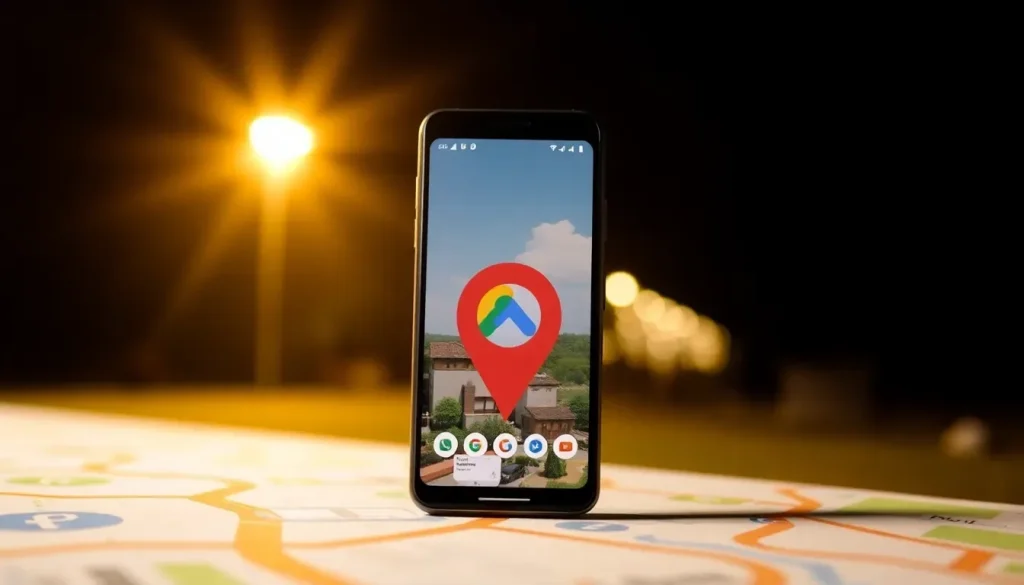
In the rapidly evolving digital landscape, changes in popular applications can often catch users off guard. Google, a tech giant known for its continuous innovation, has recently announced significant transformations in two of its most widely used applications: Google Maps and Google Photos. These changes are not merely cosmetic; they signal a shift in how users will interact with these essential tools on their devices.
As Google continues to integrate artificial intelligence into its services, the redesign of the icons in these applications is just one manifestation of this broader trend. Understanding these updates is crucial for users to navigate their devices effectively without unnecessary confusion.
What to Expect from the New Icons in Google Maps and Google Photos
While the exact timeline for the rollout of these new icons is still unclear, Google has indicated that the changes will occur soon. This follows a pattern observed in other applications, where the company has adopted a consistent aesthetic across its suite of products. Users can expect a fresh look, one that aligns with Google's ongoing commitment to innovation.
The key alterations in the icons are primarily focused on color and gradient design. Both Google Maps and Google Photos will move away from their traditional, flat color schemes to embrace a more modern and vibrant approach. The new icons are designed not only to be visually appealing but also to reflect the company's push towards integrating cutting-edge technology.
- Google Maps Icon: The location marker will have a more rounded shape and a gradient color palette that enhances its visual appeal.
- Google Photos Icon: While its fundamental shape remains recognizable, the icon will now feature smoother transitions between colors, showcasing the new style.
As Google stated in its announcement, "Although we remain true to the four iconic colors of Google, the brighter tones and gradient design symbolize the increase in innovation driven by AI and creative energy across all our products and technology."
How to Update Google Maps and Google Photos
Keeping your applications up to date is essential to ensure you have the latest features and enhancements. Here’s how you can update Google Maps and Google Photos on your device:
- Open the Google Play Store or App Store on your device.
- Search for Google Maps or Google Photos.
- If an update is available, you will see an “Update” button. Tap it to start the download.
- Wait for the update to complete and then open the application to experience the new icons.
It’s important to note that these updates typically happen automatically, so users should keep their devices connected to the internet to receive the latest versions without manual intervention.
What Happens to Your Photos in Google Photos?
With the redesign of Google Photos, many users may wonder how this will affect their existing photos and data. Fortunately, these changes are purely aesthetic and will not impact any of your saved content. However, it is advisable to familiarize yourself with the new layout and features, as they may enhance your user experience.
Here are a few key points to consider regarding your photos:
- The layout of your photo library will remain intact, but navigation might feel different due to the new iconography.
- All existing features, such as editing tools and sharing options, will still be available.
- It’s a good idea to back up important photos regularly, especially during significant updates.
Are There Current Issues with Google Maps?
With any major redesign, users often report issues or bugs that may arise during the transition. While Google works diligently to resolve these matters, users might experience temporary disruptions. Here are some common problems users may encounter:
- Slow Loading Times: After an update, some users may notice that the app takes longer to load.
- Missing Features: Occasionally, certain features may not work as expected immediately after an update.
- Icon Confusion: As mentioned, users accustomed to the previous icons may initially struggle to find the new designs.
To troubleshoot any issues with Google Maps, users can try the following steps:
- Restart the app or the device.
- Check for additional updates that might fix bugs.
- Consult online forums or Google’s support page for assistance.
Embracing the Change: Tips for Users
As the launch date for the new icons approaches, users should prepare for these changes to optimize their experience. Here are some tips to help you navigate the transition smoothly:
- Take a moment to familiarize yourself with the new icons once they are released.
- Explore the redesigned features of both Google Maps and Google Photos to take full advantage of any enhancements.
- Engage with online communities for tips and shared experiences during the transition.
In conclusion, while the introduction of new icons in Google Maps and Google Photos may seem trivial, it represents Google’s commitment to innovation and user experience. By staying informed and adapting to these changes, users can continue to make the most of these essential applications.
For those interested in enhancing their understanding of digital tools, consider checking out this informative video that discusses space-saving tips for mobile devices:


Leave a Reply